Setting up your Fusion Controller
You will need to complete a few settings on the tablet before you use your Lifesize Fusion system.
Exit Lifesize Controller App on tablet power up
The Lifesize Controller App opens automatically on the tablet. You must exit the app before you can access tablet settings.
- Power on the tablet.
- Swipe up twice to see the input password box.
- Enter 6170.
- Tap Confirm. The Status bar displays.
- Tap the Home
 key. This exits you from the Lifesize Controller App so that you can modify settings.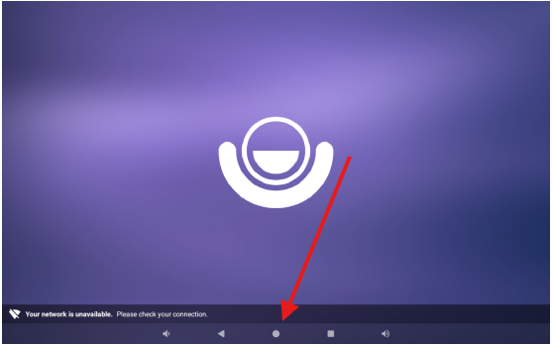
Access tablet settings
You can define how things work when in Kiosk Mode in the Lifesize Controller App.
- From the Home screen, tap the Settings icon.
- Tap System.
- Tap Kiosk Mode.
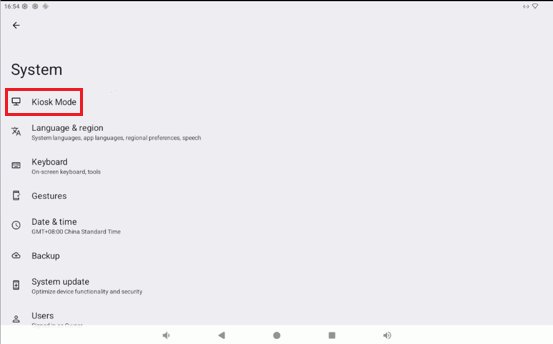
Set the application password
Under Kiosk Mode, you will enter a password that allows access to the Lifesize Controller App.
- Toggle Exit Password to On. The Set Exit Password box displays.
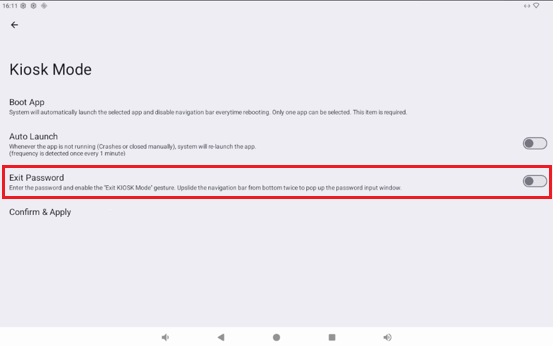
- Enter the access password on the first line.
- Enter the same password on the second line.
- Tap OK.
- Tap Confirm & Apply
Configure the Network
Choose one of the following options to connect the tablet to the local network and the internet.
Connect with RJ45 Ethernet Interface
Connect an Ethernet cable to provide network connectivity and Power over Ethernet (PoE).
Connect with Wi-Fi
Configure the Wi-Fi connection.
- From the Home screen, swipe down to access the Settings icon.
- Tap the Settings icon.
- Tap Network & internet.
- Toggle Wi-Fi to On.
- Select the connection you want to use.
- Enter the Wi-Fi password, if necessary.
- Click Connect.