Join By Go
From your Lifesize Icon room system you can join a Microsoft Teams®, Google Meet™, or Zoom® meeting using Connect Go.
Note: This feature is only available to users of Connect Plus Gateway.
Enable Scan to JOIN
Before users can join meetings using Connect Go, a Microsoft Azure Admin must enable Scan to JOIN in the Microsoft Azure account. Administrators only need to do this once, before using Connect Go for the first time.
- Go to the approval page for Scan to JOIN.
- Login with your Microsoft Admin account.
Important: An Azure Admin login and password is required. - Enable the Scan to JOIN option. This allows Scan to JOIN to read the appointments of logged in users.
Meet Using Join By Go
Currently there are two ways to meet using Join By Go. Join a meeting on your Icon room system using a Connect Go group contact or using the Lifesize Room Controller App on your Android tablet.
Create a Group Contact
In the Admin Console, create a group contact with the Connect Go dialing string: [email protected]. Lifesize Cloud Administrators only need to do this once before using Connect Go for the first time.
Make a call
- From the Phone HD Home Screen, tap the Call icon.
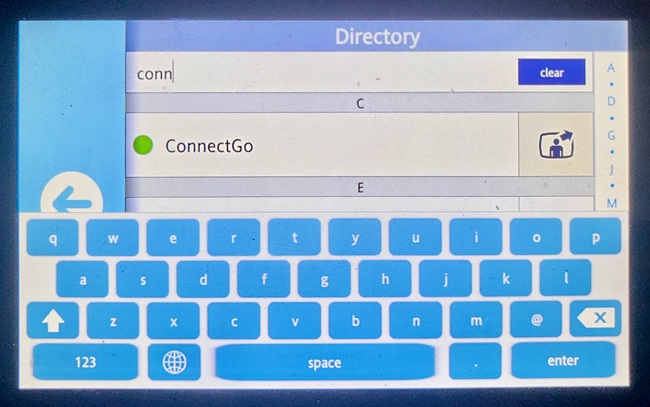
- Tap the Directory icon.
- Select the appropriate group contact that you created for Connect Go.
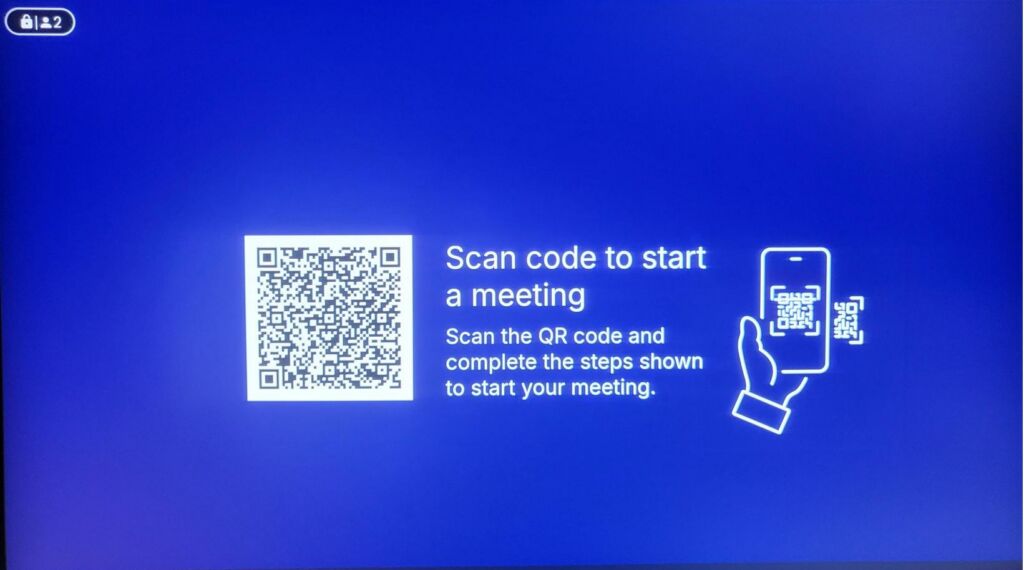
- With a mobile device, scan the QR code that displays on the screen.
Note: The user should open the QR link in a web browser on their mobile device and then log into their Microsoft 365 account to access their calendar.
- Swipe and select the meeting to attend and then click Join.
The meeting opens using your room conferencing system.
Note: Call controls are found on the mobile device.
Use Lifesize Room Controller App
You can also use Join By Go from the Lifesize Room Controller App on your Android tablet.
For more Connect Go details, visit the Synergy SKY Go page.