Join By Go
From your Lifesize Icon room system you can join a Microsoft Teams®, Google Meet™, or Zoom® meeting using Connect Go.
Note: This feature is only available to users of Connect Plus Gateway.
Enable Scan to JOIN
Before users can join meetings using Connect Go, a Microsoft Azure Admin must enable Scan to JOIN in the Microsoft Azure account. Administrators only need to do this once, before using Connect Go for the first time.
- Go to the approval page for Scan to JOIN.
- Login with your Microsoft Admin account.
Important: An Azure Admin login and password is required. - Enable the Scan to JOIN option. This allows Scan to JOIN to read the appointments of logged in users.
Meet Using Join By Go
Currently you can join a meeting on your Icon room system using a Connect Go group contact.
Create a Group Contact
In the Admin Console, create a group contact with the Connect Go dialing string: [email protected]. Lifesize Cloud Administrators only need to do this once before using Connect Go for the first time.
Make a call
- From the Phone HD Home Screen, tap the Call icon.
- Tap the Directory icon.
- Select the appropriate group contact that you created for Connect Go.
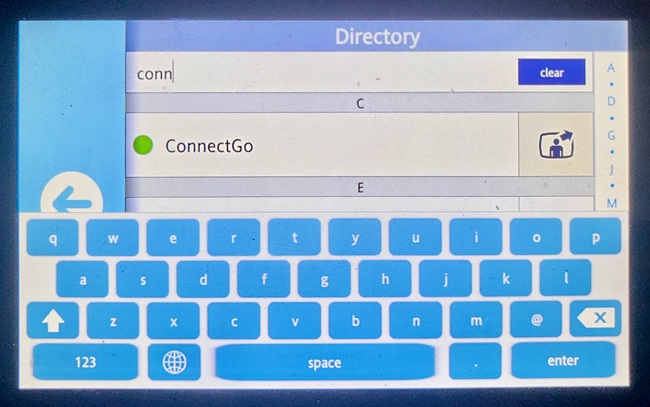
- With a mobile device, scan the QR code that displays on the screen.
Note: The user should open the QR link in a web browser on their mobile device and then log into their Microsoft 365 account to access their calendar.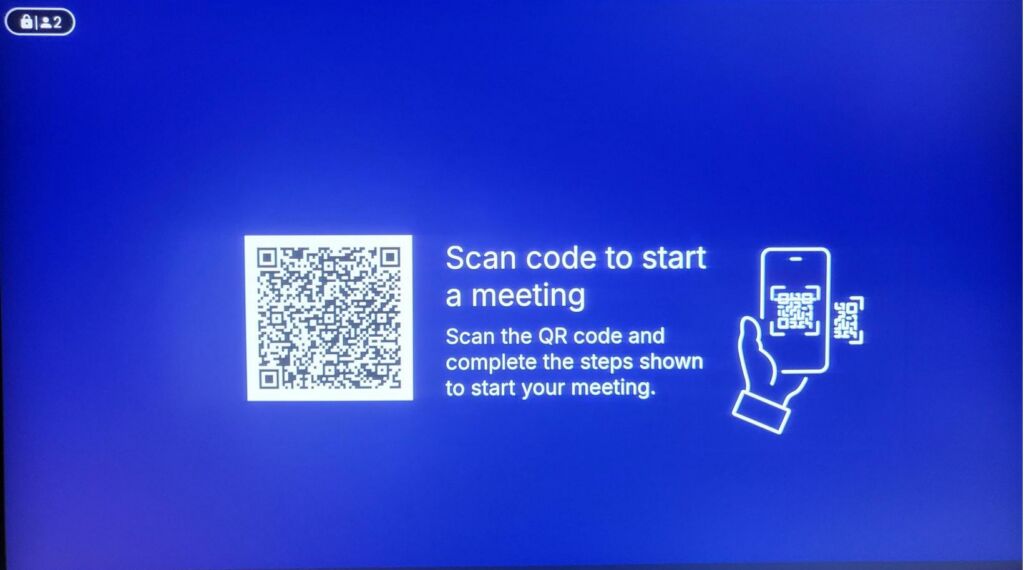
- Swipe and select the meeting to attend and then click Join.
The meeting opens using your room conferencing system.
Note: Call controls are found on the mobile device.
For more Connect Go details, visit the Synergy SKY Go page.